Discord Bots
AutoDM runs your Discord server through your own bot. Your members see your bot's name and picture answering, greeting, moderating and handing out roles, and you manage all of it from one dashboard.
Connect your bot
Making a bot takes about two minutes.
- Open the Discord Developer Portal, press New Application and give it a name.
- Open the Bot tab. Under Privileged Gateway Intents, turn on Message Content Intent and save.
- Press Reset Token on the Bot tab and copy the token.
- In AutoDM, switch to Discord in the platform switcher at the top of the dashboard, open Bot settings and paste the token under Bot token.
AutoDM checks the token, connects the bot and stores the token encrypted. The token is never shown again. If you reset it in Discord, paste the new one to reconnect.
If the app you connect was already sending button taps to another web address, AutoDM replaces that address and tells you. Use a bot that exists only for AutoDM.
Add the bot to your server
On Bot settings, press Add to a server. Discord opens, you choose a server and you keep every permission ticked so replies, buttons and moderation work.
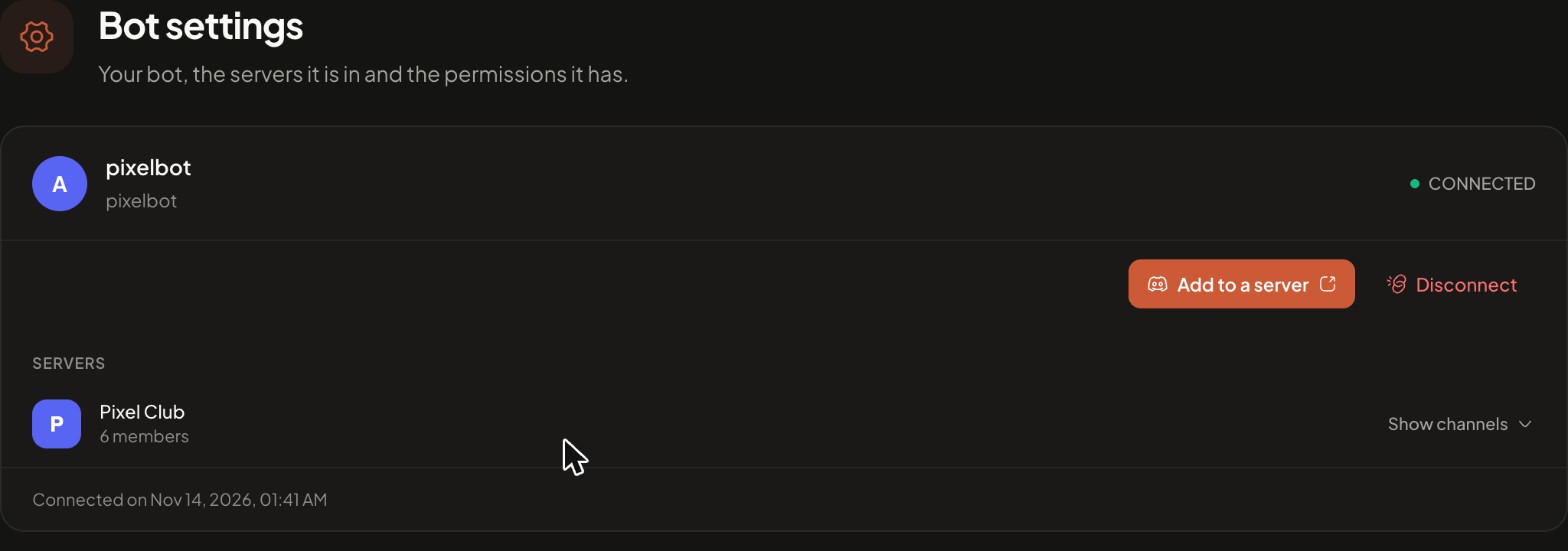
- Show channels lists the text channels the bot can see in each server.
- If the bot is missing a permission one of your features needs, the dashboard shows Missing permissions with a Fix permissions button. The list can include Add Reactions, View Channels, Send Messages, Embed Links, Attach Files, Read Message History, Send Messages in Threads, Manage Roles, Manage Messages, Timeout Members and Manage Server.
- If you turn on a feature later that needs a permission the bot was added without, add the bot again from the same button to grant it.
Server Members intent
Some features need Discord's Server Members Intent: welcome and goodbye messages, booster thanks, and the log of joins, leaves, role changes and nickname changes. Turn it on in the Developer Portal next to Message Content Intent. AutoDM only asks Discord for it when one of those features is on, and shows a notice if Discord rejects it.
Find your way around
The server switcher at the top of the Discord menu moves you between the servers your bot is in. Each screen says whether its settings belong to This server or apply to All servers the bot is in.
| Section | Screen | What it does |
|---|---|---|
| Essentials | Welcome & members | Greet new members, thank boosters, say goodbye |
| Commands | Your own slash commands, like /price | |
| Auto replies | Answer keywords, mentions and DMs | |
| Reaction roles | Give a role when someone reacts | |
| Announcements | Scheduled posts, sticky messages, polls, Twitch Go Live alerts | |
| Moderation | Auto moderation | Remove spam and blocked words |
| Protection | Message rules, punishment ladder, anti-nuke | |
| Verification | A button new members tap to get in | |
| Cases & logging | /warn, /ban, numbered cases, server log | |
| Community | Levels | Points, level roles, /leaderboard and /rank |
| Tickets | Private support channels |
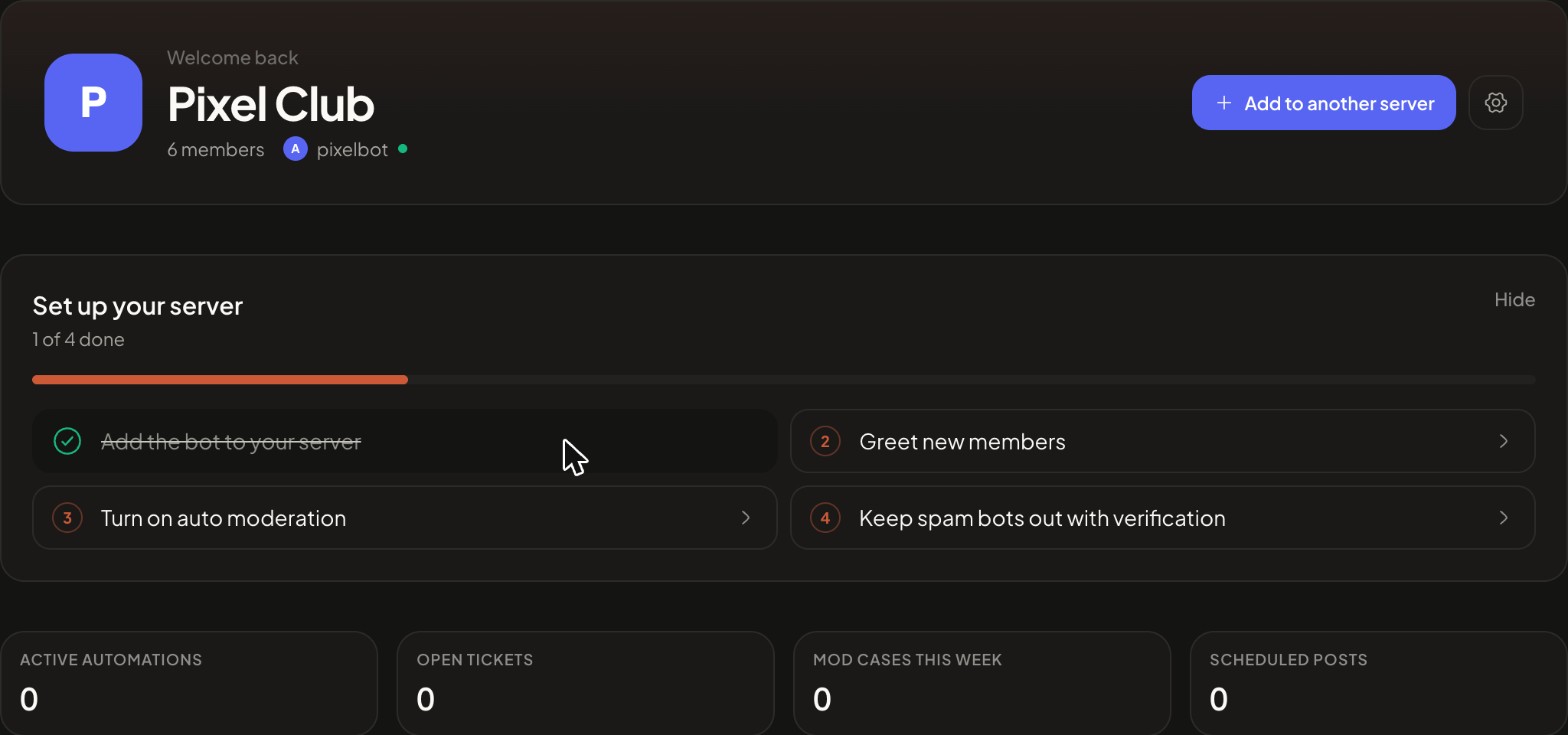
The Overview page shows a short setup checklist (add the bot, greet new members, turn on auto moderation, set up verification) and four numbers: active automations, open tickets, moderation cases this week and scheduled posts.
Anything the screens do not cover can be built in the flow builder: buttons, dropdown menus, pop-up forms, role gates and giving roles. See Flow Studio on Discord.
Plans and limits
| Free Forever | Creator Pro | Creator Max | |
|---|---|---|---|
| Bots connected at once | 1 | 3 | 10 |
| Active automations | 10 (separate pool) | 50 (pooled) | 100 (pooled) |
| Slash commands per server | 10 | 50 | 100 |
| Scheduled posts per server | 25 | 50 | 100 |
| Sticky messages per server | 25 | 50 | 100 |
| Twitch Go Live alerts per server | 2 | 10 | 25 |
| Welcome messages, role rewards, AutoMod sync | Yes | Yes | Yes |
| Smart ticket triage | No | Yes | Yes |
| Name check at the verification gate | No | Yes | Yes |
| Replies from your bot | 200 an hour, 1,000 every 24 hours | 1,000 an hour, 8,000 every 24 hours | 1,500 an hour, 12,000 every 24 hours |
- Your plan's other limits are in Plans and limits.
- Discord itself allows about 5 messages every 5 seconds in one channel. AutoDM follows that for every plan.
- At a limit, replies wait for a free slot and go out in order.
- If you go over a plan limit, AutoDM tells you which plan allows more and saves nothing until you fix it.
- If your plan drops, a ticket panel keeps its settings, but smart triage stops until you upgrade again.