Commands, replies and reaction roles
These three screens are the same builder with different starting points. Each one creates an automation: something that sets it off, an optional filter, and what the bot does.
Press the New command, New auto reply or New reaction role button, or Create automation on an empty screen. You can also press Build with ChatGPT to have an assistant help you build it.
What sets an automation off
| Trigger | When it runs |
|---|---|
| Message in a channel | Someone writes your keyword in a channel the bot can see. |
| Message to the bot | Someone sends your bot a direct message. |
| Someone mentions the bot | Someone @mentions your bot. |
| Reaction on a message | Someone adds an emoji to a message. The reply goes to their DMs. |
| Slash command | Someone types your command, like /price. The answer is shown only to them. |
| Someone joins, boosts or leaves | See Welcome and members. |
Each trigger lives on the screen that fits it: slash commands on Commands, reactions on Reaction roles, joins, boosts and leaves on Welcome & members. Channel messages, mentions and DMs are on Auto replies, which also lists any automation no other screen claims.
Create an automation
Every screen above opens the same builder, in three steps. A phone preview on the right shows what the member will see as you go.
Step 1: Trigger. Give the automation a name (up to 80 characters), check the Discord Bot it belongs to, and choose the Trigger Event. Where the trigger has filters, such as channels or roles, they are here too.
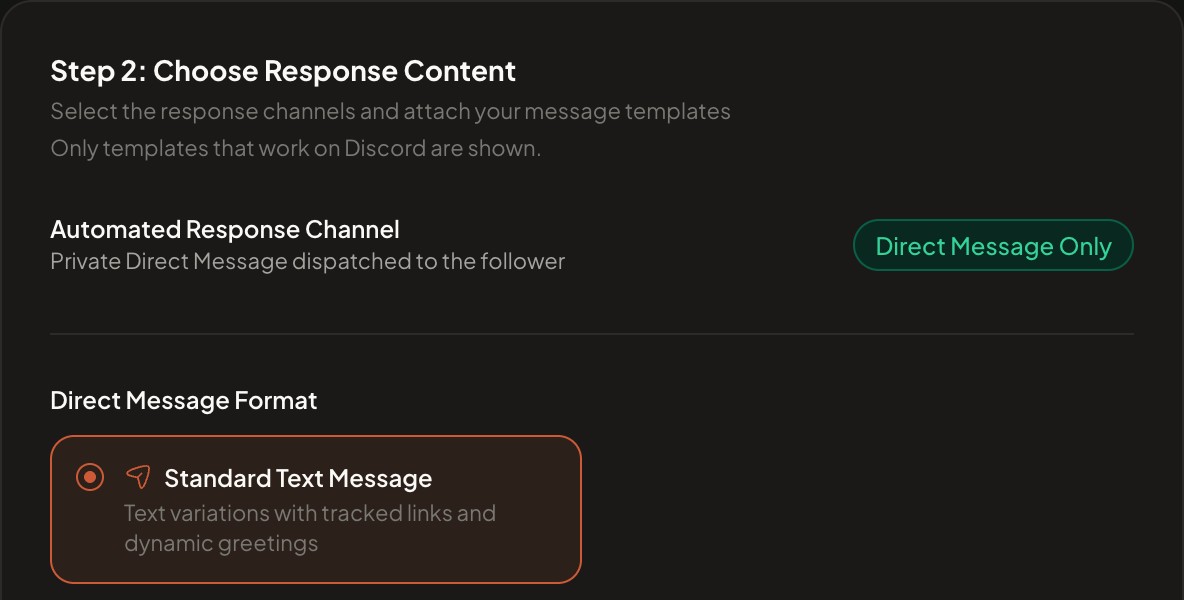
Step 2: What happens. Switch on everything the bot should do. Which switches you see depends on the trigger:
| Trigger | You can switch on |
|---|---|
| Message in a channel | Reply in the channel, send a DM, give a role. Turn on at least one reply or the DM. |
| Message to the bot | The bot answers in the same DM. |
| Mention of your bot | Reply in the channel, give a role. |
| Reaction on a message | Give a role (the reaction-role setup), send a DM, or both. |
| Someone joins or boosts | Post in a channel, give a role, send a DM. Any one of them is enough. |
| Someone leaves | Post in a channel. |
| Slash command | A reply only they can see, and optionally a role. |
A DM or a reply asks for a saved message template once it is on. Press Create new template to make one. Only templates that work on Discord are listed, and the ones made for Discord (a welcome, a booster thank-you, a rules card) come first. A post asks for a channel and its text, and a role asks for the roles to give.
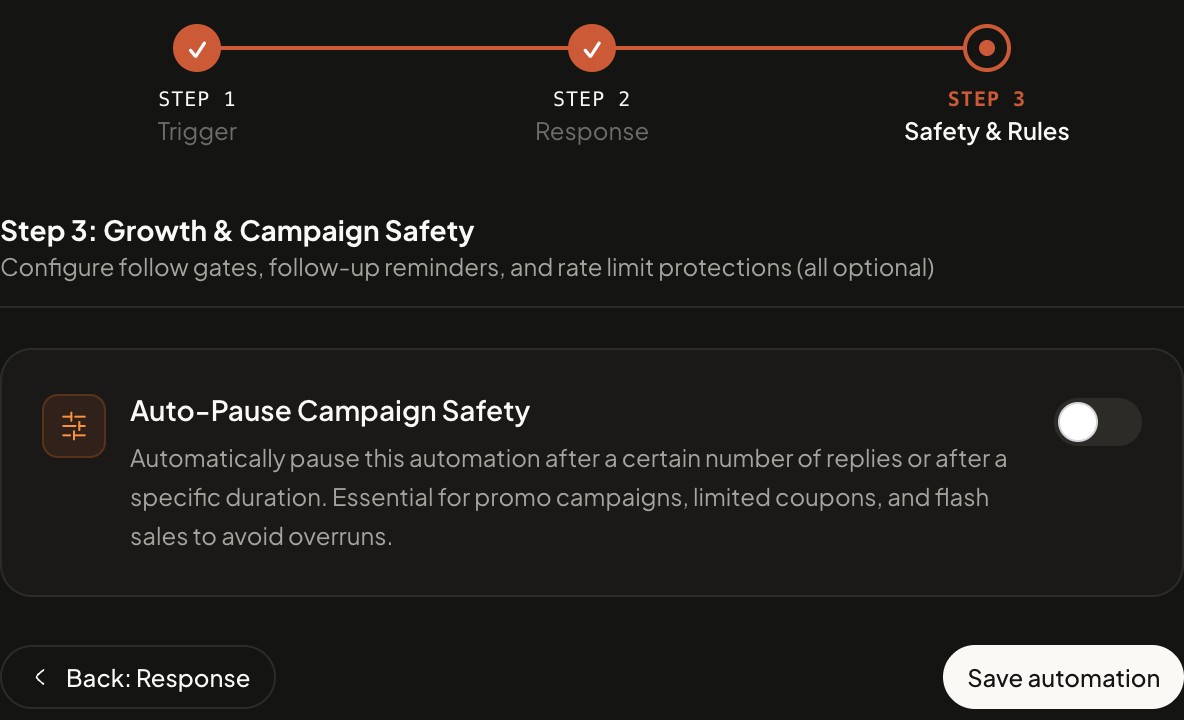
Step 3: Safety & Rules. Optionally turn on Auto-Pause Campaign Safety to pause the automation after a number of replies or after a set time. It is made for promo campaigns and limited coupons. Press Save automation to finish.
Slash commands
A command is an automation that answers /yourcommand.
- Open Commands and press New command.
- Under Command name, type what people type after the slash. Use lowercase letters, numbers,
-and_, up to 32 characters, with no spaces. - Write the reply. Only the person who ran the command sees it.
- Save. The command appears in Discord a few seconds later.
Good to know:
- The flow's name becomes the command's description in Discord (up to 100 characters).
- A bot can have up to 10 commands per server on Free Forever, up to 50 on Creator Pro, and up to 100 on Creator Max.
- No two active automations can use the same command name.
leaderboardandclaimare reserved. So are the commands AutoDM provides:rank,poll,warn,warnings,timeout,untimeout,kick,banandunban. See Levels and Cases and logging.
Auto replies
Use Auto replies to answer questions people ask in channels, mention the bot or send it in a DM.
- Choose Message in a channel and a keyword. The bot replies when someone writes it. You can send a public reply in the channel, a DM, or both.
- Choose Message to the bot to answer anyone who DMs the bot.
- Choose Someone mentions the bot to answer @mentions.
Replies can use {first_name} and the other message variables, or a saved template. A Discord message holds up to 2,000 characters of text.
Reaction roles
A reaction role gives a role when a member reacts with an emoji.
- Open Reaction roles and press New reaction role.
- Choose Reaction on a message. Under Which message, pick Any message or One message. For one message, paste its link: in Discord, right-click the message and choose Copy Message Link.
- Add the emojis to wait for, for example 🔥, or choose any emoji.
- Under Also do this, turn on Give roles and add the role.
- Turn on Take the roles back when the reaction is removed if you want a classic reaction role: react to get it, unreact to lose it, react again to get it back.
The bot needs Manage Roles, and its role must sit above every role it gives.
Also do this
Extra steps run together with the message, even when the person has DMs closed:
- Give roles (up to 10). Use it for reaction roles, an auto role for new members, or a role for a keyword.
- Post in a channel, with your own text. Only the person is mentioned.
Where and for whom
Under Where and for whom you limit an automation to some channels or roles. Leave it empty to run everywhere, for everyone.
- Server: choose which server the filter is for.
- Channels: Only these or Everywhere except. Pick channels or whole categories. A thread counts as part of its channel, and a forum post as part of its forum. You can also paste the link or ID of one forum post or thread.
- Roles: Only people with one of these roles, or Never for people with one of these roles. A role in the second list always wins over the first.
Flows on Discord
Press Flow Studio on any of these screens to build a multi-step conversation. On Discord a flow can:
- Start from a channel message, a DM, a mention, a reaction, a join, a boost or a slash command.
- Show answer options as buttons or as one dropdown menu (up to 25 options).
- Ask a form: a button opens a pop-up form with up to 5 fields (one line or long answer, required or not). Each answer is saved into a variable, so later steps can use it as
{{name}}. - Role gate: people with a role in your server continue. Everyone else gets your message and a Check again button, and is checked again when they tap it.
- Give a role to the person.
- Wait as long as you need. A bot can message people any time while their DMs are open, so there is no 24 hour window.
See Flow Studio for the steps that work everywhere, and Build with your assistant to have an assistant write the flow for you.