Moderation and protection
The Moderation section of the Discord menu has four screens that work together: Auto moderation, Protection, Verification and Cases & logging.
Auto moderation
Auto moderation removes spam, scams and blocked words in the channels you choose. It uses the same engine as Comment Guard.
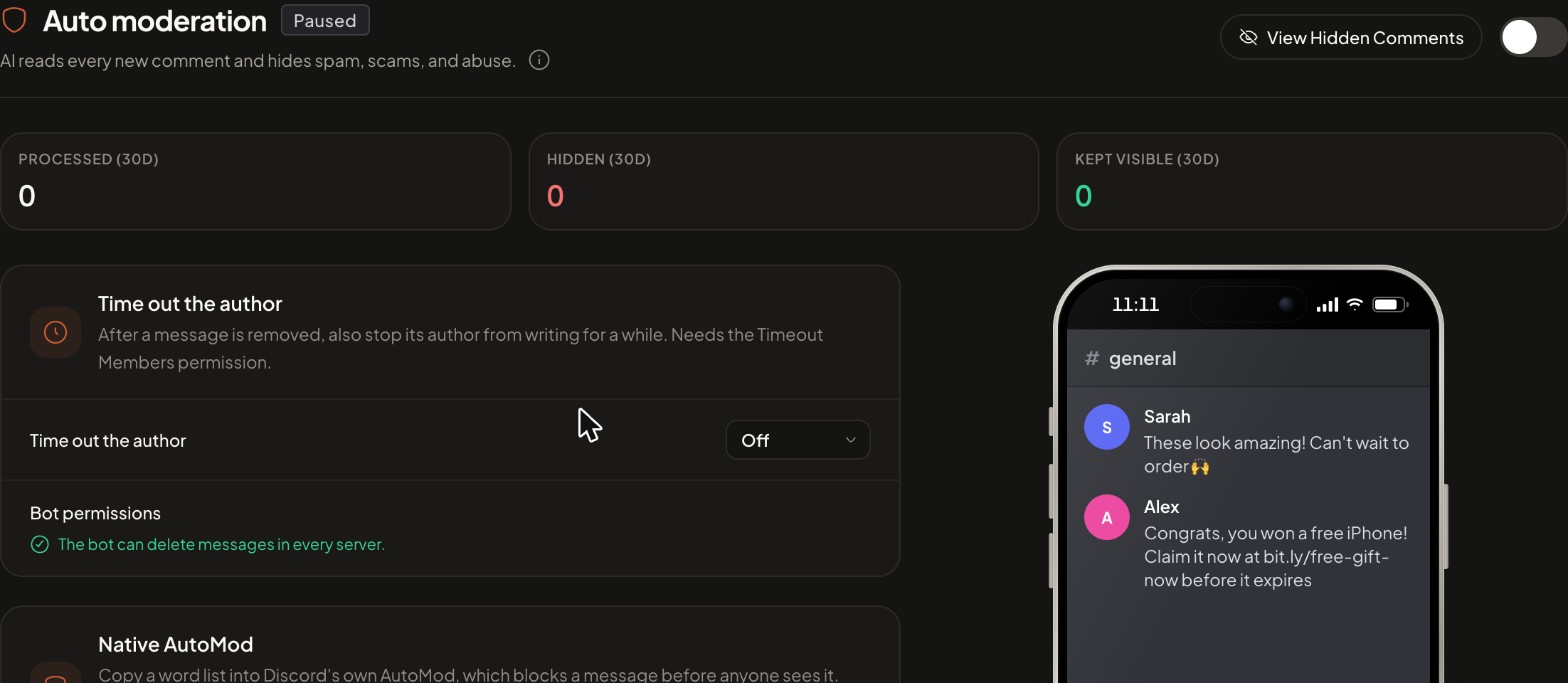
- Turn the switch at the top on.
- Under Protected Channels, press Choose Channel, pick a server and then the channels to protect. It does not moderate every channel automatically. The counter (for example 0/5 on Creator Max) shows how many you can protect on your plan.
- The bot needs Manage Messages in the server to delete messages. The Bot permissions line tells you if it is missing.
Server owners, administrators and members who can manage messages are never checked.
The three counters at the top show messages processed, hidden and kept visible over the last 30 days. View Hidden Comments lists what was removed.
Time out the author
After a message is removed, you can also stop its author from writing for a while: Off, 1 minute, 5 minutes, 10 minutes, 1 hour, 1 day or 1 week. The bot needs Timeout Members.
Native AutoMod
Copy a word list into Discord's own AutoMod, which blocks a message before anyone sees it.
- Turn on Keep this list in my servers' AutoMod and add Blocked words, one per line. Use
*as a wildcard, likescam*or*scam*. - Optionally write the message the person sees when blocked.
- Press Save and sync. Sync again updates the rules later.
- Rules AutoDM makes are named "AutoDM keywords". Rules you made yourself are never changed.
- The bot needs Manage Server. Discord allows 6 keyword rules per server, and your own rules use some of that room.
- Words Discord does not accept are left out, and you are told how many.
Protection
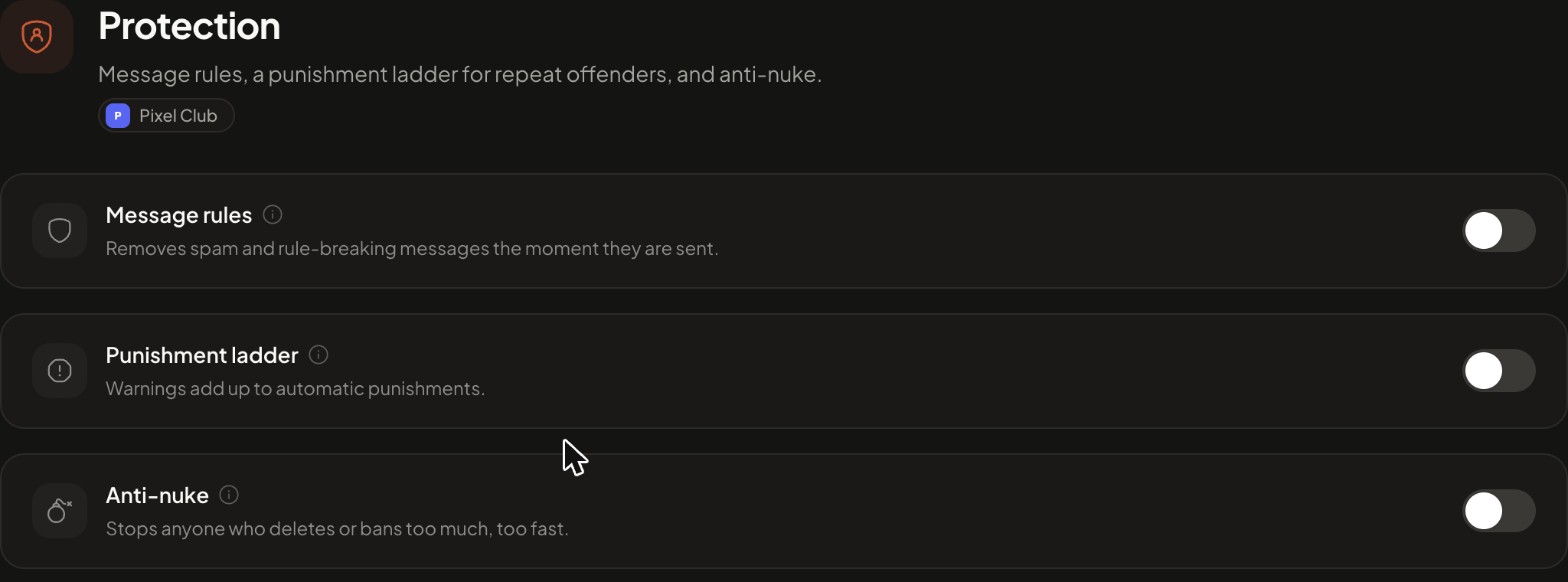
Protection has three switches: message rules, a punishment ladder and anti-nuke. Each one opens its own settings when you turn it on.
Message rules
Message rules remove spam and rule-breaking messages the moment they are sent.
| Rule | Catches |
|---|---|
| Message flooding | Too many messages in a few seconds. All of them are removed. |
| Repeated messages | The same message sent again and again. |
| Mass mentions | One message that pings too many people or roles. |
| Shouting | Messages written mostly in capital letters. |
| Emoji spam | Too many emojis in one message. |
| Server invites | Invite links to other Discord servers. |
| Links | Any link that is not on your allowed websites list. |
For each rule you set the numbers (for example how many messages within how many seconds) and When it happens:
- Remove the message
- Remove it and warn
- Remove it and time out (you set how many minutes)
Under Exceptions, pick roles and channels that are never checked. Add your moderators and trusted members. You can also tell the member why their message was removed with a short note in the channel that takes itself down after a few seconds.
Punishment ladder
Warnings add up. When a member reaches a number you set, they are punished automatically. Warnings from moderators, from message rules and from messages the AI removes all count.
- Only count warnings from the last (days) sets how long a warning counts.
- Each step has a number of warnings and a punishment: Time out (with minutes), Kick or Ban.
- Press Add a step for more steps, for example a time-out at 3 warnings and a ban at 5.
Anti-nuke
Anti-nuke stops someone with power, like a rogue admin, a hacked account or a bad bot, from wrecking your server. If one person does too much too fast, they are stopped and you are alerted.
It watches six actions: deleting channels, deleting roles, banning members, kicking members, creating channels and creating webhooks. For each, set Stop them at this many within a number of seconds. Set 0 to ignore that action.
What happens to them:
- Take away all their roles (the safest choice: the alert lists their roles so you can give them back)
- Kick them
- Ban them
Trusted people are never stopped. Paste a Discord user ID: in Discord, turn on Developer Mode, right-click the person and choose Copy User ID. The server owner and the bot are always safe. Pick an Alert channel, or leave it empty to use your log channel. The server owner is pinged.
The bot needs View Audit Log and Manage Roles, and its role must sit above the people it may have to stop.
Verification
Verification keeps spam bots out. New members see one channel with a button. Tapping it gives them the member role, so bots that never tap stay out.
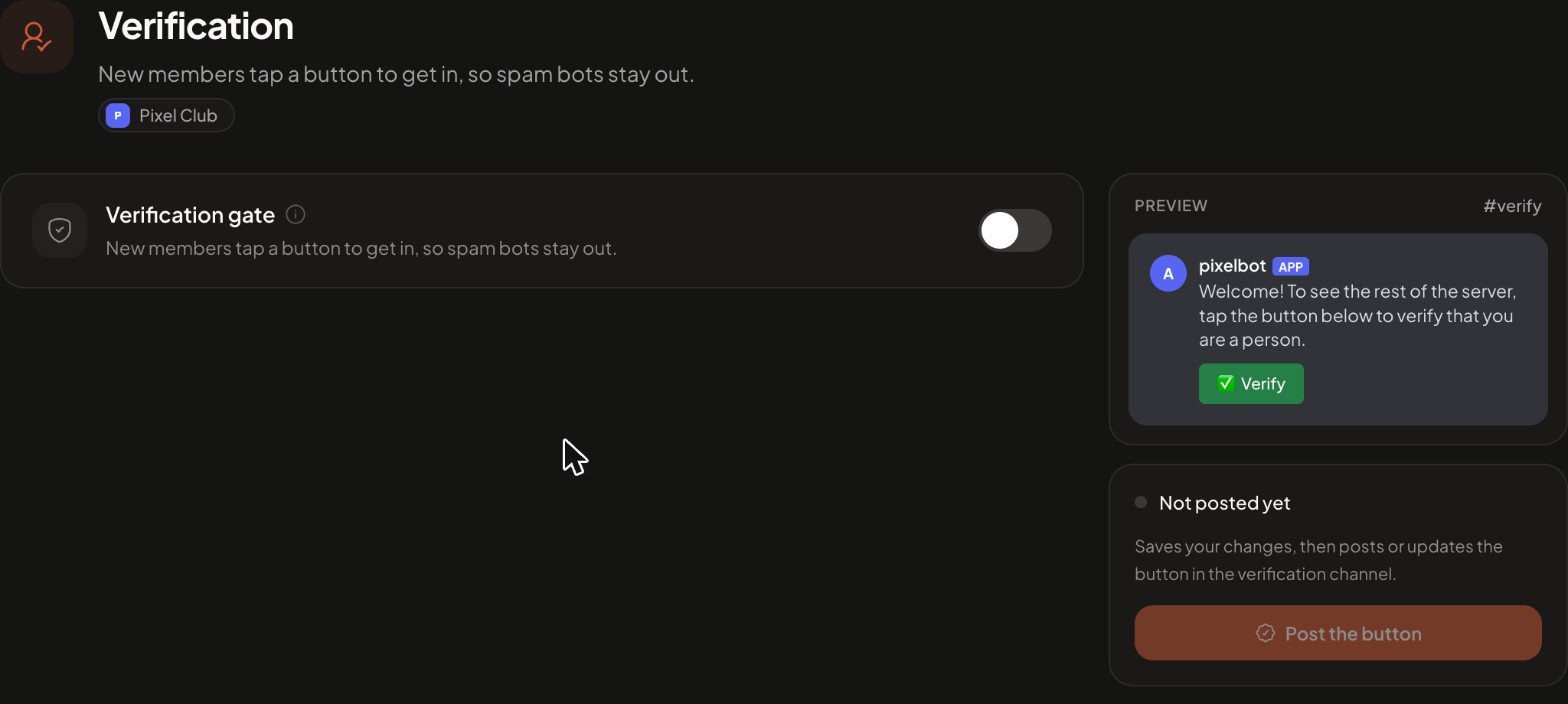
- Turn on the Verification gate.
- Choose the Verification channel where the button is posted. Set your server so new members can only see this channel.
- Choose the Member role given when someone verifies. The bot needs Manage Roles, and its role must be above this one.
- Choose how members verify:
- One tap: fast, and keeps out anything that cannot press a button.
- A small question: also asks a short sum, which scripts that only press buttons cannot read.
- Edit the Message above the button, then press Post the button. Press Update the button after later changes.
Hold risky members for review
- Hold accounts younger than (days) keeps young accounts waiting. 0 lets every account through. Without a review channel, young accounts are asked to come back later.
- Review channel: held members wait here with Approve and Reject buttons. It also holds members who join during a raid.
- Check new members' names (Creator Pro and Creator Max) holds members whose name looks like staff, an advert or a random bot name. If the check is unavailable, people are let through.
Cases and logging
Moderation commands
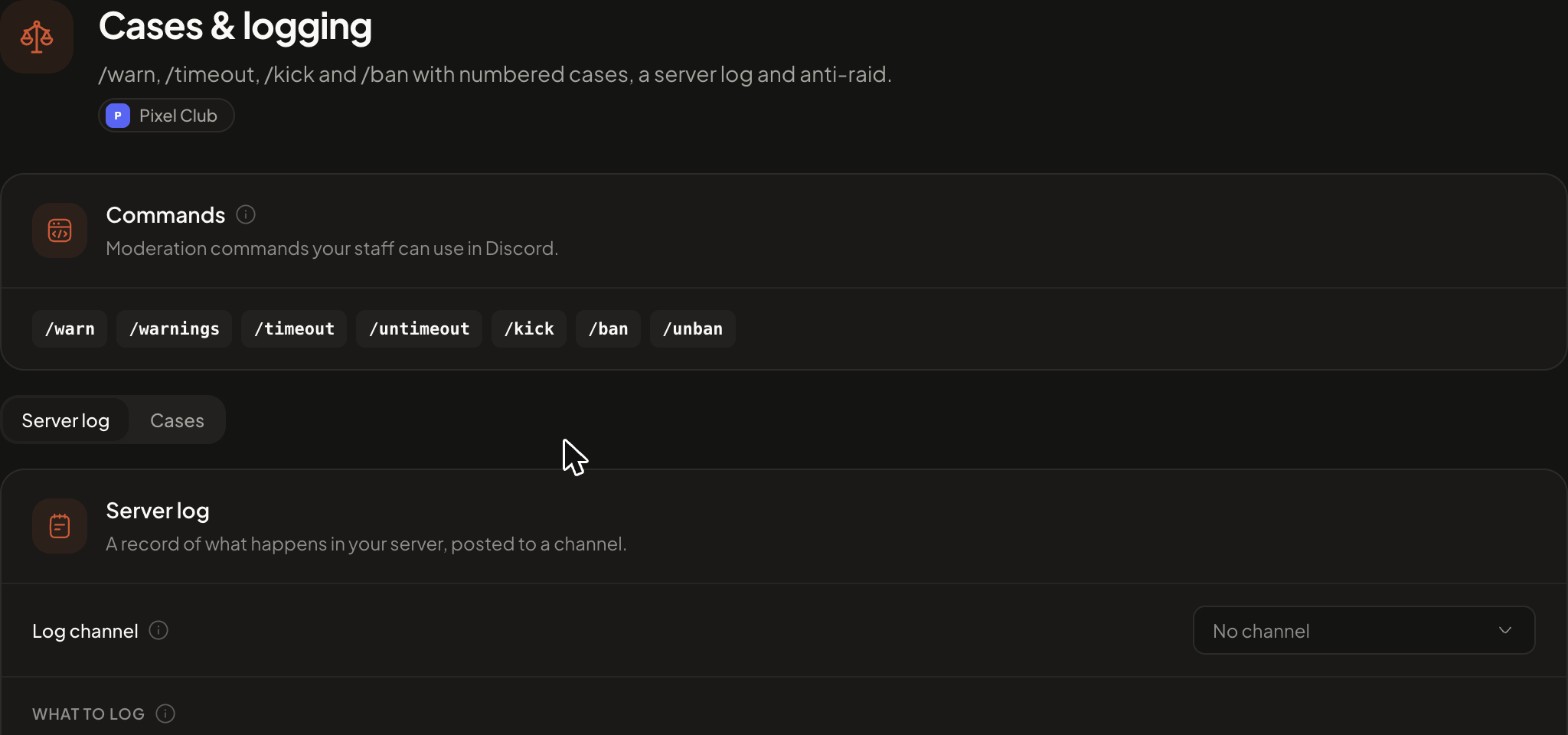
Members with the matching Discord permission can use these in any server the bot is in:
| Command | What it does |
|---|---|
/warn | Warn a member. The warning is kept as a case. |
/warnings | See the warnings and other cases of a member. It suggests a next step when a member keeps breaking the rules. |
/timeout | Stop a member from writing or talking for a while, for example 30m, 2h or 7d. At most 28 days. |
/untimeout | End a timeout early. |
/kick | Remove a member. They can come back with an invite. |
/ban | Ban a person for good, or for a set time (for example 3d or 1w, up to a year). You can also delete their messages from the last 0 to 7 days. |
/unban | Lift a ban. Type their name or paste their user ID. |
Every action becomes a numbered case. A reason can be up to 512 characters and is shown to the member and in the log. The Cases tab lists each case with its action, member, moderator, reason and date. You can remove a warning from a member's history there. Messages the AI removes in Auto moderation also appear as cases, so everything that happened to a member is in one place.
Turn on Tell the member in a DM when they are warned, timed out, kicked or banned to notify them.
Server log
Pick a Log channel and switch on what to log. Everything starts off.
- Deleted messages and edited messages (message text is kept for 3 days so the log can show what it said)
- Member joins and leaves
- Bans and unbans done outside the bot
- Role changes and nickname changes
- Moderation cases
You can give an event its own channel, add Ignored channels that are never logged (for example a staff channel) and choose to ignore messages from bots. Joins, leaves, role and nickname logs need the Server Members Intent.
Anti-raid
Anti-raid keeps brand-new accounts out and answers a flood of joins. Turn on the join gate and set:
- Catch accounts younger than (days). 0 turns this check off.
- Catch a raid when more than this many join, within a number of seconds (5 to 120). 0 turns this check off.
- What to do with them: kick, time out for a day, or only alert the moderators.
- An Alert channel. The log channel is used if you leave it empty.
After a burst, everyone who joins for the next 10 minutes gets the same action. Anti-raid needs the Server Members Intent.