Announcements, sticky messages, polls and Twitch alerts
Announcements has four tabs: Scheduled posts, Sticky messages, Polls and Twitch. These settings belong to the server you picked in the server switcher.
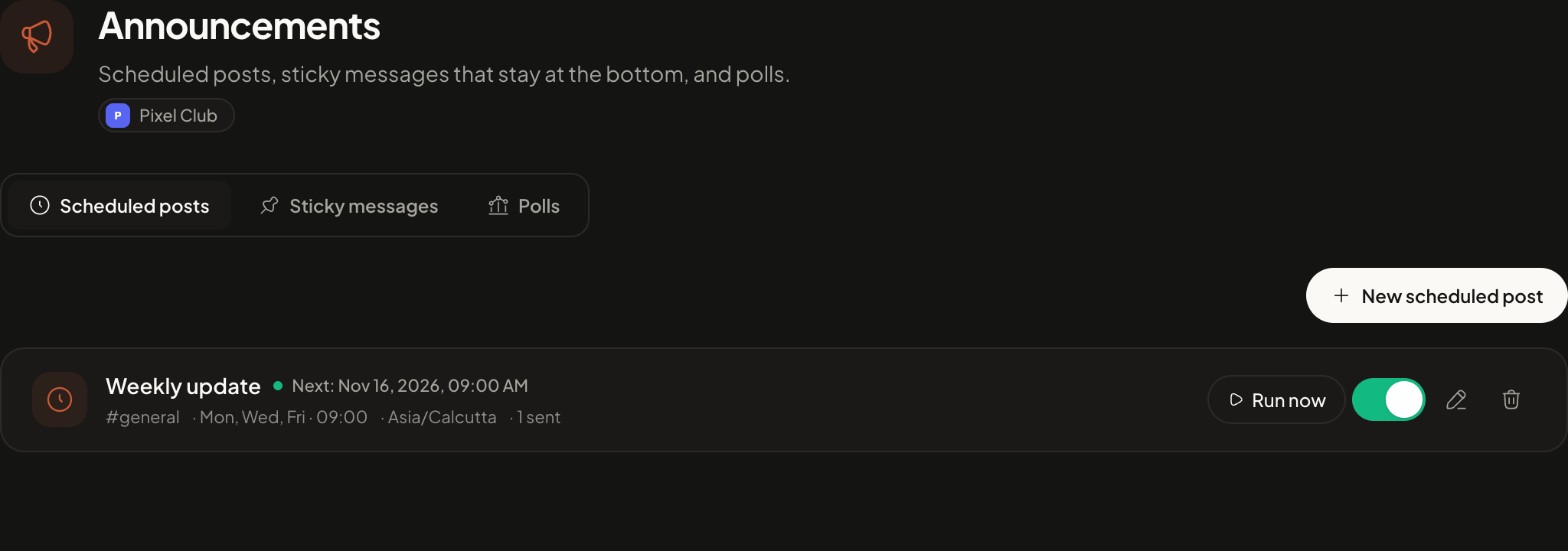
Scheduled posts
Post a message in a channel on a schedule.
- Open the Scheduled posts tab and press New scheduled post.
- Give it a Name, choose the Server and the Channel.
- Under Schedule, choose how often it goes out:
| Schedule | Meaning |
|---|---|
| Once | On the date and time you pick |
| Daily | Every day at a time |
| Weekly | On the days you tick (Sun to Sat), at a time |
| Every N hours | Every number of hours you set, with an optional first run |
- Pick the Timezone, write the Message and save. The preview shows how it will look.
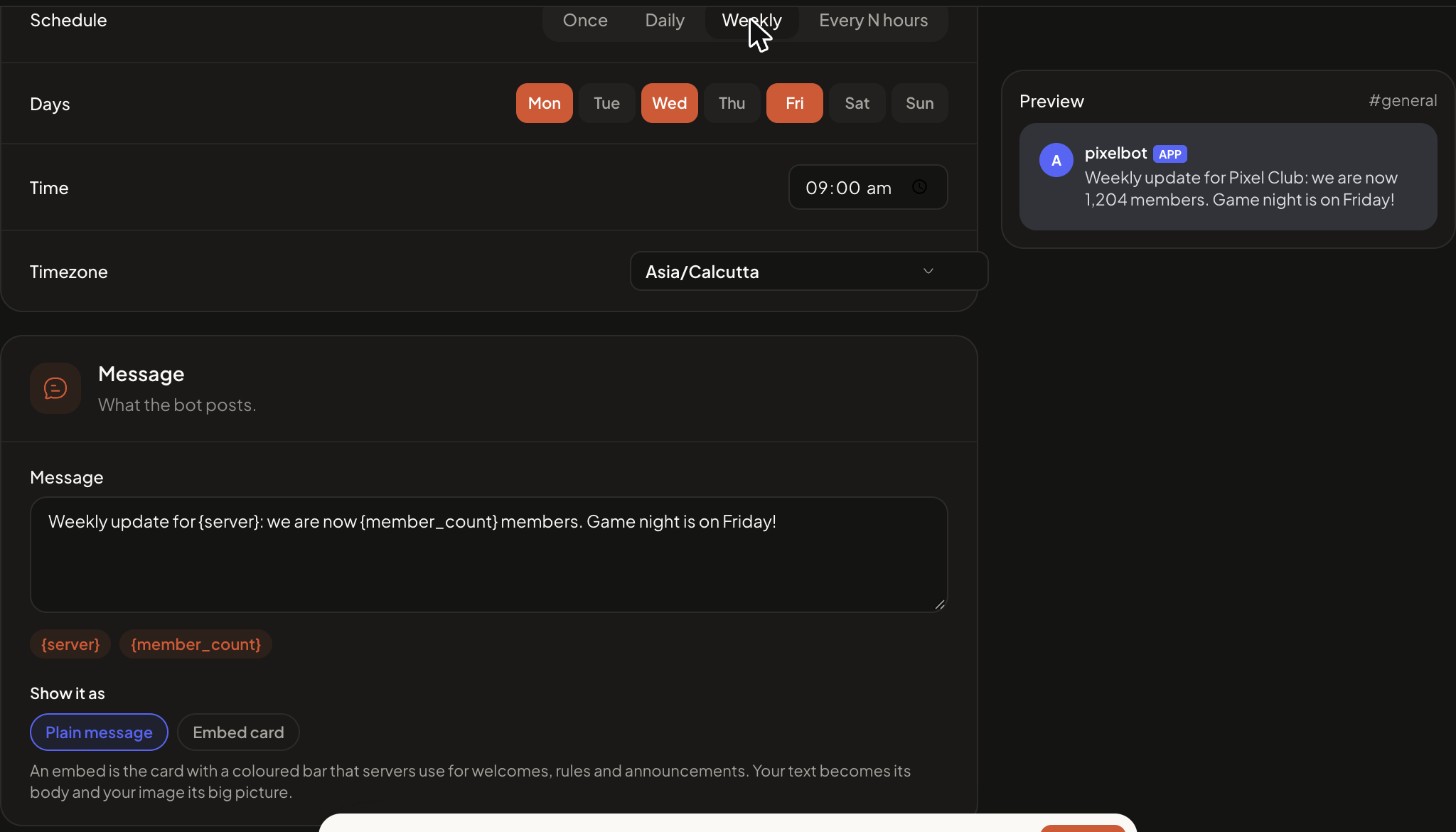
Messages can use {server} and {member_count}, and can be a plain message or an embed card.
Each post shows when it runs next, how many times it was sent and whether the last run was Sent or Failed. Press Run now to send one straight away, switch it off with Enabled, or delete it to stop it.
Your plan allows 25 scheduled posts per server on Free, 50 on Creator Pro and 100 on Creator Max.
Sticky messages
A sticky message stays at the bottom of a channel. Each time people write, the bot posts it again so it is the last thing they see. Use it for rules, a pinned link or a "read this first" note.
- Open the Sticky messages tab and press New sticky message.
- Choose the Server and Channel. A channel can only have one sticky message.
- Write the message.
- Set how it reposts:
- Cooldown (seconds): the shortest wait between reposts.
- Min new messages: how many new messages must arrive before it moves down.
- Edit existing message in place: edits the old message instead of posting a new one. It then does not move to the bottom.
The list shows each sticky message with its cooldown and minimum messages, and when it was last posted. Your plan allows 25 sticky messages per server on Free, 50 on Creator Pro and 100 on Creator Max.
Polls
Ask your community a question with a Discord poll.
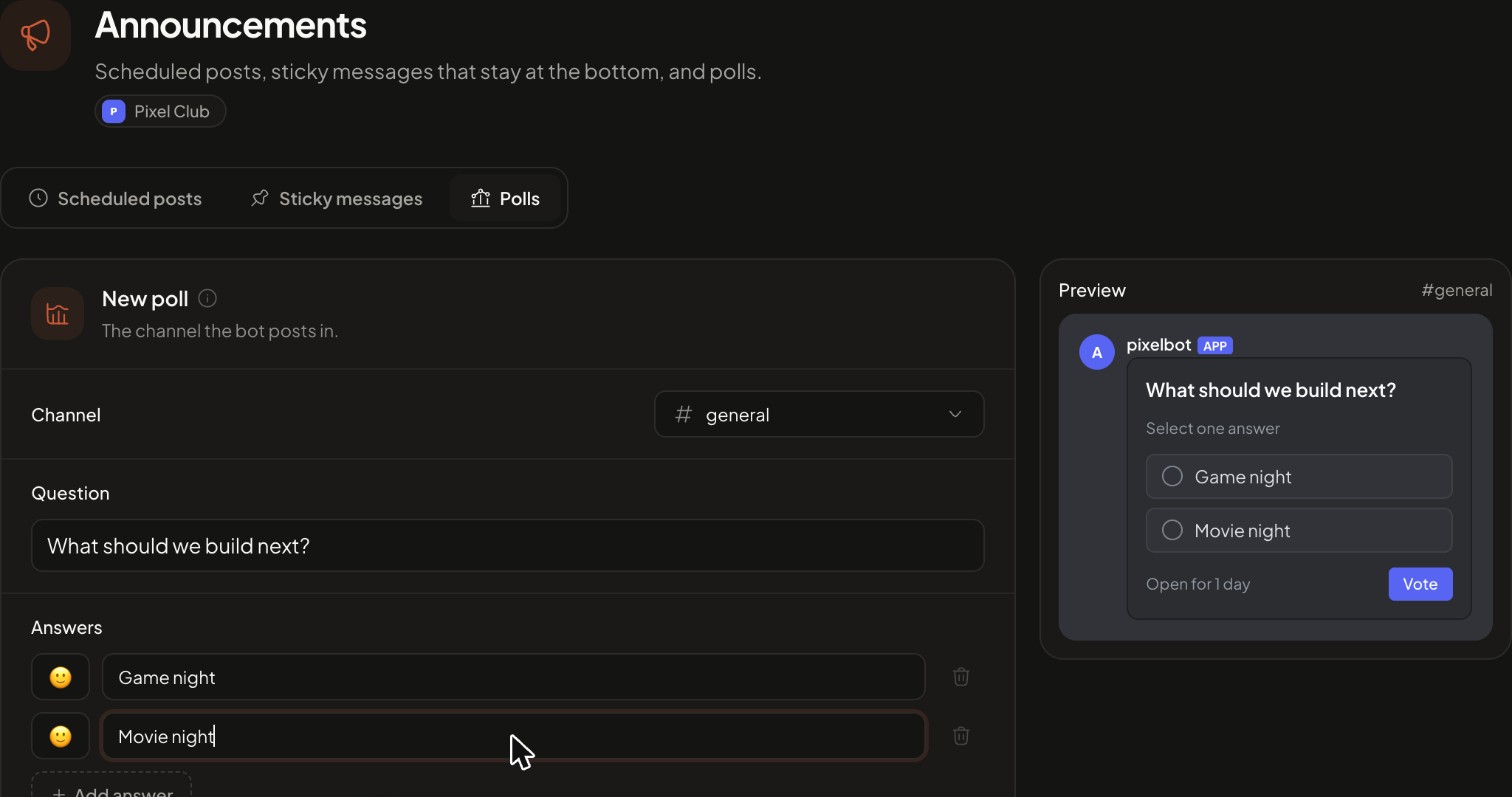
- Open the Polls tab and press New poll.
- Write the Question (up to 300 characters).
- Add Answers: 2 to 10, each up to 55 characters, each with an optional emoji.
- Choose how long the poll stays open, from 1 hour up to 32 days. The default is 1 day.
- Turn on Let people pick more than one answer if you want multiple choice.
- Add an optional message above the poll.
- Choose Send now or Schedule, then press Post poll or Schedule poll.
The bot needs the Send Polls permission in the channel.
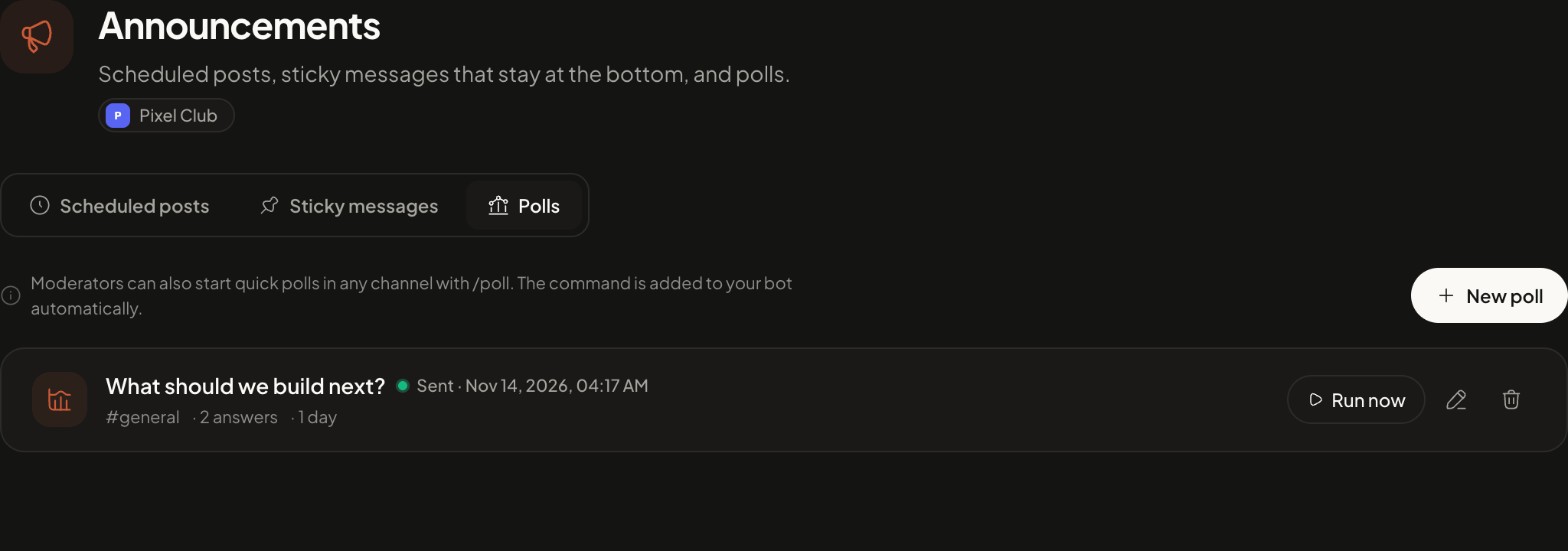
After you post, the poll appears in the list with its status, channel, number of answers and how long it stays open.
Hide results
Discord polls show live counts to everyone. Turn on Hide results until I share them and AutoDM runs the poll with vote buttons instead. Voters only see that their vote was counted, and the results stay in your dashboard until you press Post results to channel. You can also press Close now to end it early.
Quick polls from Discord
Moderators can start a quick poll in any channel with /poll. The command is added to your bot automatically. It takes a question, up to 10 answers, the hours it stays open (default 24) and whether people can pick more than one.
Twitch Go Live alerts
Announce when a Twitch streamer goes live in a Discord channel, sent through Twitch EventSub as soon as the stream starts.
- Open the Twitch tab under Announcements and press New Twitch alert.
- Enter the Twitch username or paste a
twitch.tvchannel link. - Choose the Discord channel where the alert should post.
- Pick a Mention option if you want to ping people: None, @everyone or a specific Role.
- Write your Message text (up to 500 characters). You can use
{streamer},{title},{game},{url}and{viewers}. - Choose whether to Include stream preview image and Live streams only (skip reruns), then save.
Press Send test alert on any rule to preview the embed in your channel right away. Each alert includes a link to watch on Twitch, the stream title, category and viewer count, with a 5-minute cooldown between notifications so back-to-back stream updates do not spam your channel.
Your plan allows 2 Twitch Go Live alerts per server on Free, 10 on Creator Pro and 25 on Creator Max.