WhatsApp Business
AutoDM answers your customers on WhatsApp from your own business number. People see your business name, not AutoDM. You can reply automatically, chat from the Inbox, send campaigns to people who agreed to hear from you, and keep using the WhatsApp Business app on your phone at the same time.
WhatsApp is part of the Business Pro and Business Max plans. See Plans and limits below.
How WhatsApp is different
Three rules come from WhatsApp itself, not from AutoDM. They explain most of what you see on these screens.
- The 24-hour reply window. When someone writes to you, you can reply with any message for the next 24 hours. Every new message from them starts the 24 hours again. After that, you can only send an approved template. See Templates.
- Meta bills you directly. WhatsApp charges per message, and Meta bills those charges to the payment method on your WhatsApp account. AutoDM adds nothing on top. Each number gets 1,000 free replies a month. See What WhatsApp charges.
- People must agree to marketing. You can only send offers and news to people who agreed to get them, and anyone can stop them by replying STOP. See Contacts and consent.
Before you connect
- A Facebook login with access to your business. Meta asks you to log in and pick your business portfolio and number. AutoDM never sees your Meta password.
- A phone number for your business. It can be a number already in the WhatsApp Business app, or a new number that is not on WhatsApp yet.
- A payment method in WhatsApp Manager. Meta bills your messages to you. Without a payment method, replies stop once the free ones for the month are used, and templates are not delivered.
Using a number that is already in the WhatsApp Business app
You can keep the WhatsApp Business app on the same number. Messages show up both on your phone and in AutoDM. A few things change in the app when you connect:
- Broadcast lists, disappearing messages and view-once messages are turned off.
- Your linked devices (WhatsApp Web, desktop) are unlinked. Link them again afterwards.
- Keep the app open on your phone for a while after connecting, so your contacts and chat history can come across. See Your contacts and chat history come too.
Connect your number
- In AutoDM, switch to WhatsApp in the platform switcher at the top, open WhatsApp Number and press Connect WhatsApp.
- Read the short Before you connect list and press Continue to Meta.
- A Meta window opens. Log in, choose your business, and choose the number (or add a new one and confirm it with the code Meta sends).
- Back in AutoDM, choose a 6 digit PIN for the number and press Connect number. This is WhatsApp's two-step verification. If the number already has a PIN, enter that one.
That is it. AutoDM shows that your number is connected, and messages to your number start arriving in the Inbox.
If you close the Meta window before the end, nothing is connected and you can start again. If the Meta window does not open at all, an ad blocker is usually blocking it. Allow it for autodm.live and try again.
Your contacts and chat history come too
When the number was already in the WhatsApp Business app, AutoDM brings over:
- Your contacts, with the names from your phone's address book.
- Up to six months of chats, shown in the Inbox as history. If you chose not to share your chats in the Meta window, only contacts come across.
Meta allows this only once, within 24 hours of connecting. Keep the app open on your phone until the import finishes. If it fails or the 24 hours pass, disconnect the number and connect it again to try once more.
Imported chats never start a reply window and never trigger automations, because those people wrote to you before the number was connected.
Your number's health
Open WhatsApp Number in the menu to see how your number is doing. Everything here comes from Meta.
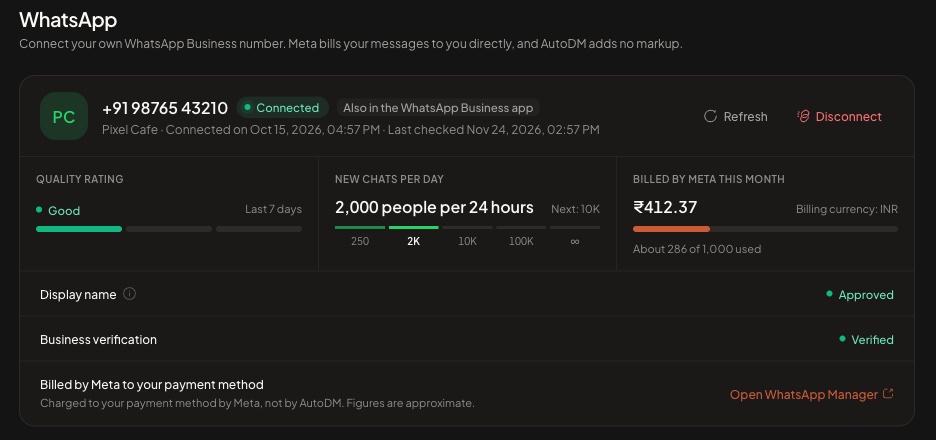
| What you see | What it means |
|---|---|
| Display name | The business name people see. Meta reviews it: Approved, In review or Declined. Change it in WhatsApp Manager. |
| Quality rating | How people reacted to your messages in the last 7 days. Low means many people blocked or reported you. |
| New chats per day | How many different people you can start a chat with in 24 hours (with a template). Meta raises it as you send good messages. Replies to people who wrote to you are not limited. |
| Business verification | Whether Meta has verified your business. Unverified businesses can start chats with fewer people a day. |
| Billed by Meta this month | An estimate of what Meta charged your payment method this month. |
| Free service replies | How many of your 1,000 free replies this month are used. |
Press Refresh to read the latest values from Meta. Open WhatsApp Manager takes you to Meta's own settings for billing, your display name and your profile.
If your quality rating turns Low, Meta limits the number until it recovers, and AutoDM pauses your campaigns. Send marketing only to people who asked for it, and send campaigns more slowly.
Find your way around
Switch to WhatsApp in the platform switcher at the top of the dashboard. The menu then has one screen for each job. With more than one number, the number switcher at the top of each screen picks which number you are working on.
| Screen | What it does |
|---|---|
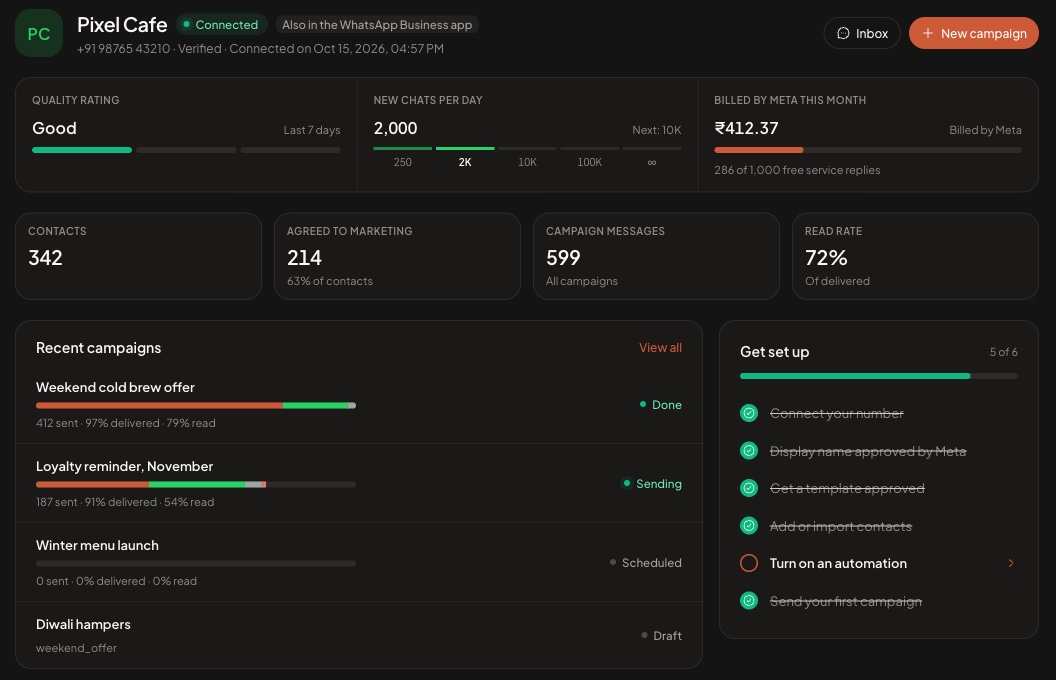
| Dashboard | Your number, a setup checklist, this month's numbers and recent campaigns |
| WhatsApp Number | Your number's health, billing and disconnecting |
| WhatsApp templates | Create messages that WhatsApp approves, for use after the 24 hours |
| Contacts | Everyone you message, their tags and whether they agreed to marketing |
| Campaigns | Send a template to many people at once |
| Segments | Saved groups of people for campaigns (Business Max) |
| Sequences | A few messages sent over several days (Business Max) |
| Get contacts | A chat link, QR code and website chat button |
| Away message | An automatic reply when you are closed |
Automatic replies, flows and AI are built in Automations, the same as on other platforms. See Automations, AI and away message. Chats are in the Inbox.
The Get set up checklist on the Dashboard shows what is left: connect your number, get your display name approved, get a template approved, add contacts, turn on an automation and send your first campaign.
What WhatsApp charges
Meta charges for each message you send that is delivered. Messages people send you are free.
| Kind of message | When it is used | What Meta charges |
|---|---|---|
| Reply | Any message inside the 24 hours after the person wrote | Free for the first 1,000 each month per number, then a small charge each |
| Marketing template | Offers, news, reminders to buy | The marketing rate |
| Utility template | An update about something the person asked for, like an order | The utility rate (much lower) |
- Prices depend on the country of the person's phone number. The campaign screen shows an estimate before you send.
- When someone starts a chat from a Click to WhatsApp ad, Meta does not charge for your messages to them for a while.
- Meta can change prices only on the first day of January, April, July and October.
- The exact bill is in WhatsApp Manager. AutoDM's figures are estimates.
From 1 January 2027, Meta stops delivering messages billed in another currency to people in India. If your WhatsApp account bills in USD, change the billing currency to INR in WhatsApp Manager before 31 December 2026. AutoDM shows a reminder until you do.
Plans and limits
| Business Pro | Business Max | |
|---|---|---|
| Price in India | ₹399 a month, or ₹3,999 a year | ₹699 a month, or ₹6,999 a year |
| Price elsewhere | $7.99 a month, or $79.99 a year | $13.99 a month, or $139.99 a year |
| Includes | Everything in Creator Max | Everything in Business Pro |
| WhatsApp numbers | 1 | 3 |
| Automations, flows, Inbox, templates, contacts | Yes | Yes |
| Campaigns sent right away | Yes | Yes |
| Scheduled and repeating campaigns, segments, retargeting | No | Yes |
| Drip sequences | No | Yes |
| AI replies | 500 a month, up to 50 a day | 2,000 a month, up to 50 a day |
- AutoDM puts no cap of its own on how many WhatsApp messages you send. Meta's New chats per day limit and your quality rating decide how many people you can start chats with.
- WhatsApp messages are billed by Meta, not counted against AutoDM's monthly replies.
- Your other limits are in Plans and limits.
If your plan ends or drops
- When your Business plan ends, your numbers are Paused: automations and campaigns stop. Messages people send you are still saved for 30 days. Upgrade to switch the number back on.
- If you move from Business Max to Business Pro with more than one number connected, one number stays on and the others are paused. Press Keep this number on on the one you want.
Disconnect a number
Open WhatsApp Number and press Disconnect. The number stops receiving messages in AutoDM. The number and your WhatsApp account stay yours at Meta, and the WhatsApp Business app keeps working.
Fix common problems
| What you see | What to do |
|---|---|
| Add a payment method in WhatsApp Manager | Meta could not charge you. Templates are blocked until you add a payment method in WhatsApp Manager billing. |
| Needs attention | AutoDM lost access to the number (for example, the permission was removed in Meta). Disconnect and connect it again. |
| Paused | Your plan ended or covers fewer numbers. Upgrade, or use Keep this number on. |
| A reply says only an approved template can be sent | The person last wrote more than 24 hours ago. Send a template instead. |
| A campaign says This cannot be sent yet | It lists the reason, such as a template still in review, no payment method, low quality or nobody in the audience with consent. |
| A person says they got nothing | They may have replied STOP, blocked your number, or may not use WhatsApp on that number. Their contact shows Opted out if they stopped marketing. |
| People get two automatic replies | The WhatsApp Business app on your phone may have its own greeting or away message on. Turn one of them off. |