Automations, AI and away message
Automations answer people who message your WhatsApp number, day and night. They are built in Automations, the same place as your Instagram, Facebook and Telegram automations. Pick your WhatsApp number as the account.
Automations only answer people who wrote to you, so their replies always fall inside the 24 hours and need no template.
Triggers
| Trigger | When it answers |
|---|---|
| Message to your number | Someone writes to your number. Add keywords like price or menu, or leave it empty to answer every message. |
| First message | The first time a person ever writes to your number. Good for a welcome message. |
| Button reply | Someone taps a quick reply button in a message you sent, like a button in a campaign. Enter the button's id. |
| Click to WhatsApp ad | Someone starts a chat from one of your Facebook or Instagram ads. Leave the ad id empty for every ad, or enter one ad's id from Ads Manager. |
When several automations could answer the same message, only one does, in this order: an ad automation, then a keyword match, then a first-message automation, then an automation that answers every message.
People who replied STOP are not answered by that message. And when you reply to someone yourself, automations step aside for a while (see When you reply yourself).
What a reply can contain
Replies are written in message templates, the same ones you use on other platforms.
- Text, up to 4,096 characters.
- One image, video or document, with the text as its caption, or an audio file.
- Up to 3 buttons people tap to answer (each up to 20 characters). The text can then be up to 1,024 characters.
- One link button that opens a web page.
- 4 to 10 buttons are shown as a list: WhatsApp shows one button that opens the choices (each up to 24 characters).
WhatsApp has no carousels. If a message template has one, the automation stops and says to remove it. The same happens if a reply is too long for WhatsApp: AutoDM tells you what to change instead of cutting it short.
On Instagram, Facebook and other platforms you can also add a Continue on WhatsApp button to a message. It opens a chat with your WhatsApp number.
Flows
Flow Studio works on WhatsApp too: ask questions, branch on answers, collect leads and send different messages to different people. Buttons in a flow become WhatsApp buttons or a list.
A flow can also send an approved template. Use it for a step that may run after the person's 24 hours have passed, like a reminder the next day.
AI replies
AI Replies answer WhatsApp messages from what you taught your AI, the same as on other platforms. While the AI is writing, the person sees that you are typing. AI replies on WhatsApp count toward your plan's AI replies (500 a month on Business Pro, 2,000 on Business Max).
AI replies must be about your business. WhatsApp does not allow general chat assistants on business numbers.
Away message
Send an automatic reply when someone writes while you are closed, like "Thanks! We're closed now and will reply from 9 am."
Open Away message in the WhatsApp menu.
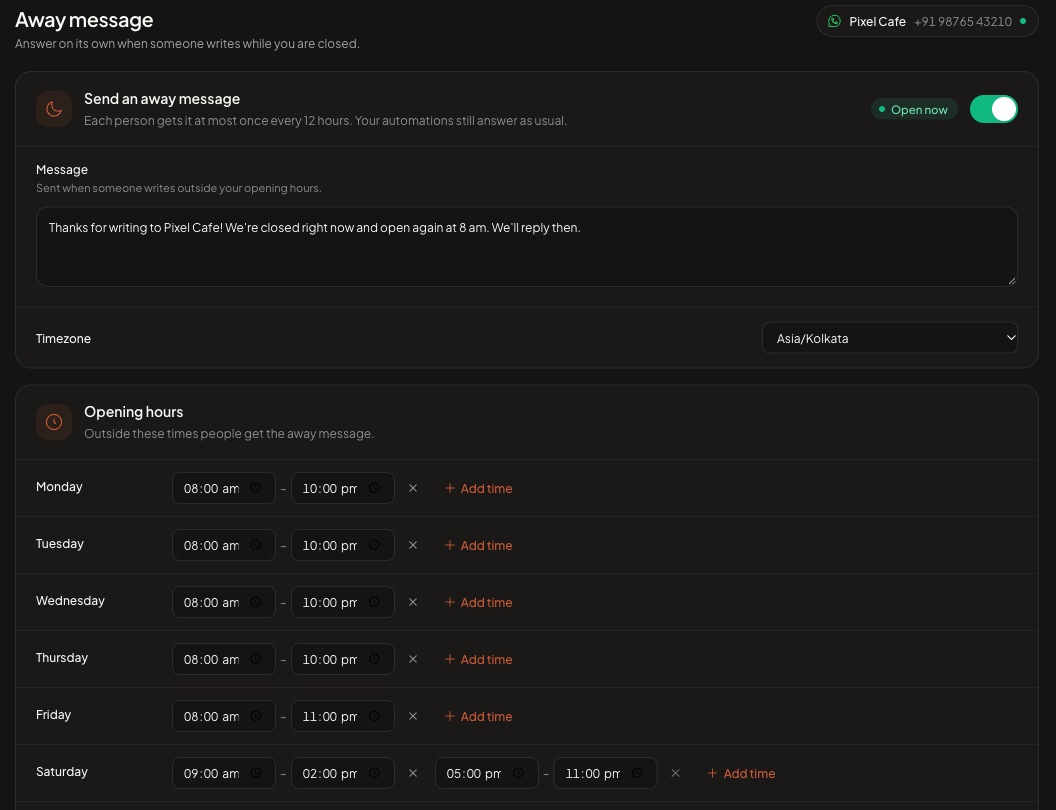
- Turn on Send an away message.
- Write the Message.
- Check the Timezone. It starts with the one your computer is in.
- Set your Opening hours for each day. A day can have up to 3 open times, like 9:00 to 13:00 and 14:00 to 18:00. Press Open on a closed day to add hours, or remove all times to keep it Closed.
- Press Save on the bar at the bottom.
The badge next to the switch shows whether you are Open now or Closed now by these hours.
- Each person gets the away message at most once every 12 hours, however many messages they send.
- Your automations still answer as usual. The away message comes first.
- It is not sent for reactions, to people who sent STOP, or while the number is paused.
- It is a normal reply inside the 24 hours, so it counts toward your 1,000 free replies a month.
- Each number has its own hours and message.
If your number is also in the WhatsApp Business app and the app has its own away message on, people get both. Keep only one of them on.
When you reply yourself
When you answer someone yourself, automations stop answering that person for a while, so they do not talk over you.
- From the AutoDM Inbox: for as long as you set in Inbox settings, under Pause automations in the conversation (1 hour, 12 hours, 24 hours, until you resume them, or not at all).
- From the WhatsApp Business app on your phone: for 30 minutes. If Inbox settings say Do not pause, they are not paused.
To switch automations back on for a person early, press Resume automations in their chat.
Sent messages
Leads and the message log show every message your WhatsApp automations sent, to whom and when, and the reason if one could not be sent.