WhatsApp contacts and consent
Contacts is the list of everyone you message on WhatsApp. Open Contacts in the WhatsApp menu.
People join the list on their own when they message your number. You can also add people by hand, import a file, or bring them in with the chat link, QR code and website button.
What each contact shows
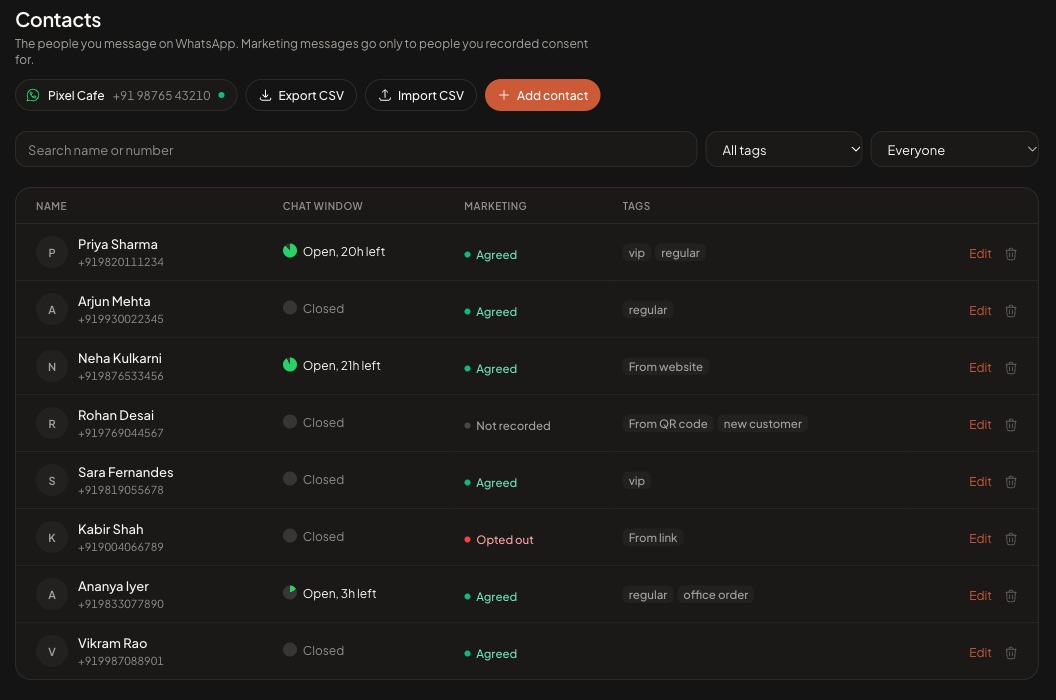
| Column | What it means |
|---|---|
| Name | Their WhatsApp name, the name from your phone's address book, or the name you gave them |
| Phone | Their number with country code |
| Tags | Labels you use to group people, like vip or Diwali sale |
| Marketing | Agreed, Not recorded or Opted out |
| Chat window | Open with the time left, or Closed (see the 24-hour reply window) |
Search by name or number, filter by a tag, or show only people who Agreed to marketing or Opted out.
Marketing consent
WhatsApp only allows offers, news and other marketing to people who agreed to get them. AutoDM sends campaigns and drip sequences only to contacts marked Agreed, and leaves everyone else out automatically.
A contact is marked Agreed when:
- you tick This person agreed to receive marketing messages on WhatsApp when adding or editing them,
- you import them and confirm they agreed (see below),
- they tick Send me offers on WhatsApp on your website chat button.
Someone who simply messages you can always get replies inside the 24 hours, but that alone is not consent to marketing.
STOP and START
- When someone replies STOP (or STOP ALL, UNSUBSCRIBE), they are marked Opted out. They get one short message saying they will not get marketing anymore and can reply START to undo it. Your automations do not answer that message, and campaigns skip them from then on.
- Sending STOP again does not send a second confirmation.
- When they reply START (or SUBSCRIBE, UNSTOP), the opt-out is lifted. If they had agreed to marketing before, they get it again. If they never had, they show Not recorded.
- If WhatsApp itself tells AutoDM that a person has turned off marketing from businesses, they are marked opted out too.
Opting out only stops marketing. You can still reply when they write to you.
Add a contact
Press Add contact, enter the phone number with country code (like +91 98765 43210), a name and tags separated by commas. Tick the consent box only if this person agreed to get marketing from you. Press Save.
To change a contact, press Edit. To remove one, press Delete. If a deleted person messages you again, they come back as a new contact.
Import contacts from a file
Press Import CSV. A CSV is a spreadsheet saved as "CSV" (Excel, Google Sheets and Numbers can all save one).
- The first row is the header. You need a column named phone, with the country code. Optional columns are name and tags (separate several tags with
;or|). - Every other column becomes a field you can use in a message, like
cityorlast_order. - Optionally add tags to everyone in this file, like
imported March. - If some numbers have no country code, enter the one to use, like
91. - Tick I confirm these people agreed to receive WhatsApp messages from my business. You must be able to show when and how they agreed if WhatsApp asks.
- Press Check the file. AutoDM shows how many will be added, updated and left out, and why each left-out row was skipped.
- Press Import.
Up to 5,000 rows per import. People already in your list are updated, not added twice. People who had opted out stay opted out, even if your file lists them.
Example:
phone,name,tags,city
+91 98765 43210,Priya Sharma,vip;repeat,Pune
+91 91234 56789,Arjun,new,Delhi
Export
Press Export CSV to download your contacts with their tags and your consent record: whether they agreed, how (for example Imported list or Website chat button), when, and whether they opted out. Keep it in case WhatsApp asks.
Tags and fields
- Tags group people for campaigns, like "everyone with the tag
vip". Each contact can have up to 20 tags of up to 40 characters. - Fields hold details about a person, like a city or order number, for filling in template values. Each contact can have up to 20 fields.
- People who come from the chat link, QR code or website button get a tag saying so automatically: From link, From QR code or From website.
Contacts from the WhatsApp Business app
If your number was already in the WhatsApp Business app, the people in your phone's address book come in when you connect, with their names. Deleting someone from your phone later does not remove them here. See Your contacts and chat history come too.