WhatsApp in the Inbox
Every WhatsApp chat shows up in the AutoDM Inbox, next to your Instagram, Facebook and Telegram messages. Use it to answer people yourself when an automation is not enough.
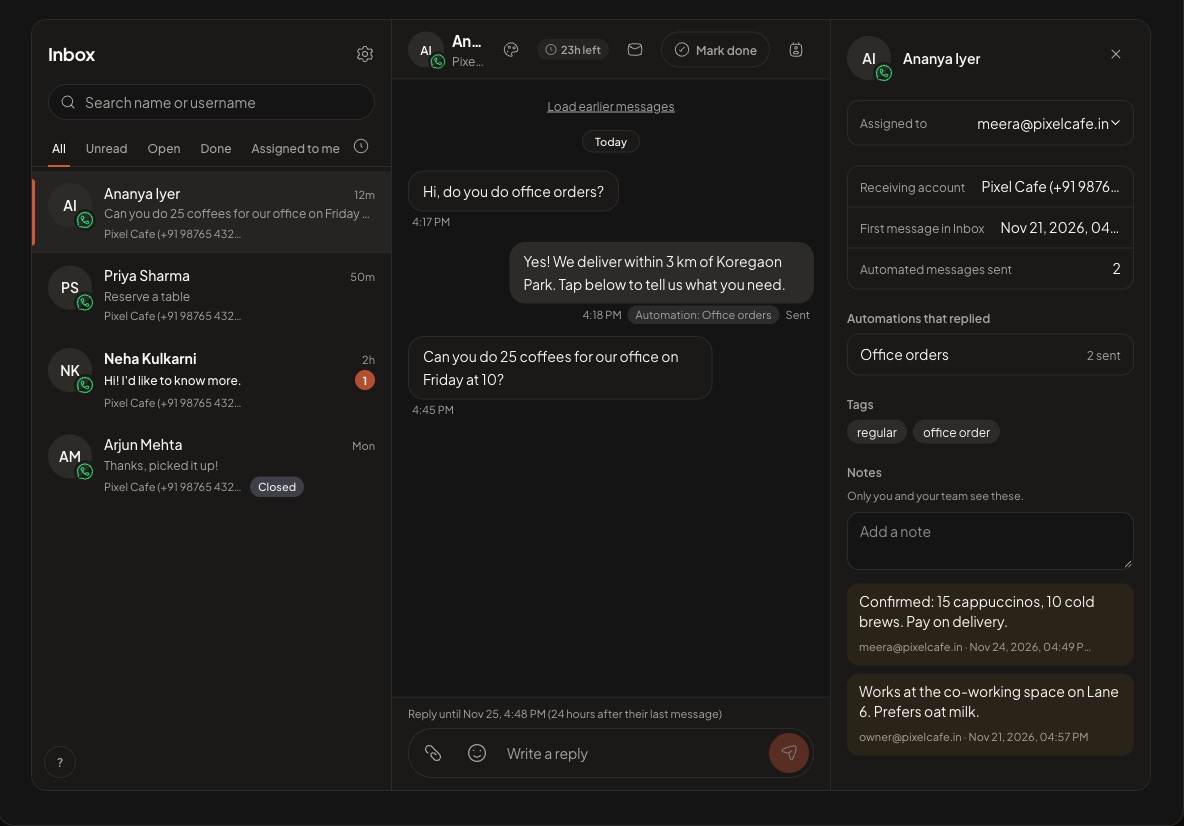
Reply inside the 24 hours
Each WhatsApp chat shows a small badge with its reply window:
- 23h left (the time you have left): the person wrote in the last 24 hours, so you can send any message: text, photos, videos, documents, emoji reactions, or a reply to one of their messages.
- Closed: more than 24 hours since they last wrote. You can only send an approved template.
Files people send you (photos, voice notes, documents, videos) open right in the chat.
After 24 hours: send a template
When the window is closed, press Send a template in the chat.
- Choose an approved template. If there are none yet, press Create a template.
- Fill in its values.
- Press Send template.
WhatsApp bills a template by its category (see What WhatsApp charges). When the person replies, the window opens again and you can chat normally.
Messages from the WhatsApp Business app
If your number is also in the WhatsApp Business app:
- Messages you send from your phone appear in the Inbox too, marked as sent from the app.
- After you reply from your phone, automations pause for that person for 30 minutes so they do not talk over you (see When you reply yourself).
- Chats from before you connected show as history (see Your contacts and chat history come too). They do not count as unread.
Notes
Keep private notes about a person, like "Prefers delivery after 6 pm" or "Asked about bulk pricing". Notes work for every platform in the Inbox, not only WhatsApp.
- Open the chat and open the contact panel on the right.
- Under Notes, type the note and press Add note (or Ctrl/Cmd + Enter).
Only you and your teammates see notes. The person never does. Each note shows who wrote it and when. The person who wrote a note, the account owner and Admins can delete it.
Assign chats to a teammate
If you have teammates, you can make one person responsible for a chat.
- Open the chat and open the contact panel.
- Under Assigned to, choose yourself or a teammate. Choose No one to take it off everyone.
The Assigned to me tab at the top of the conversation list shows only the chats assigned to you. Each teammate sees their own.
Assigned to and Assigned to me only show up once your account has at least one teammate. Viewers can see who a chat is assigned to but cannot change it.
STOP in the Inbox
When someone replies STOP, the chat shows their message and the one short confirmation AutoDM sends them. You can still reply to them yourself. They just do not get marketing from campaigns anymore. See STOP and START.