WhatsApp templates
A template is a message WhatsApp has approved in advance. You need one whenever you message someone who has not written to you in the last 24 hours: a campaign, a follow-up the next day, a drip sequence, or a reply to an old chat.
Inside the 24 hours after someone writes, you do not need templates. Any message works.
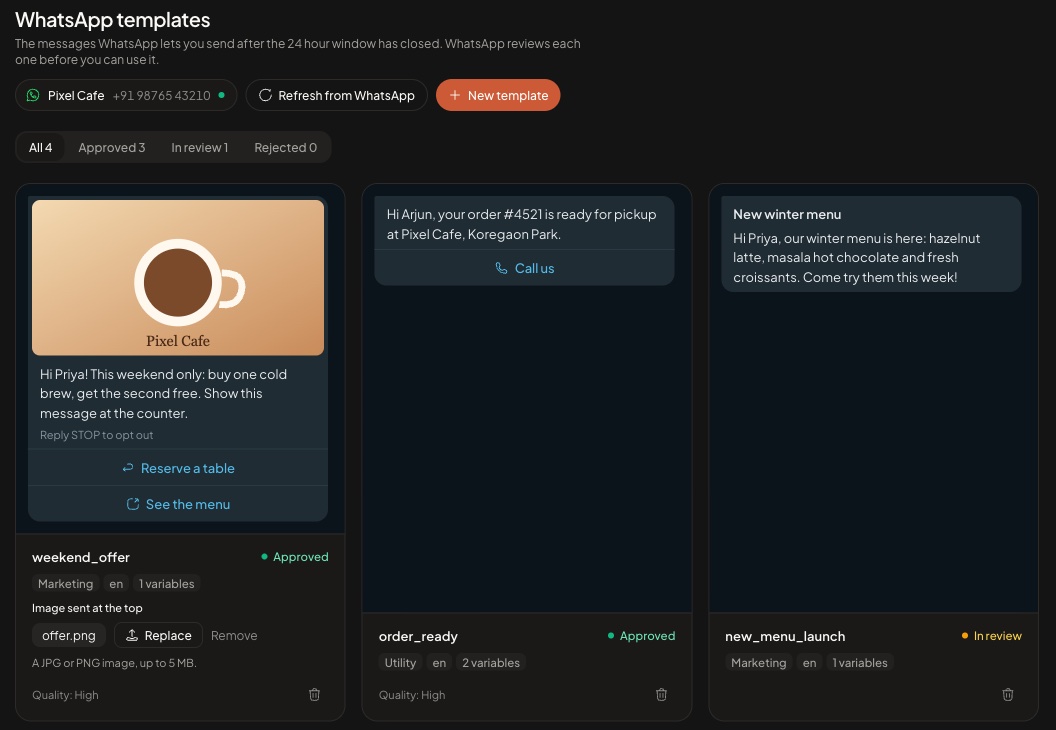
Open WhatsApp templates in the menu. Each template shows its status, category, language and how many values it has to fill in. The filter at the top shows All, Approved, In review or Rejected.
Create a template
Press New template. The preview on the right shows how it will look in WhatsApp as you type.
-
Template name. Lowercase letters, numbers and underscores, like
order_update. It cannot be changed later. -
Language. Write the message in this language. WhatsApp does not translate it. To send the same message in two languages, make two templates with the same name and different languages.
-
Category.
- Marketing for offers, promotions and news.
- Utility for an update about something the person asked for, like their order or booking. Utility messages cost much less, but WhatsApp checks that they really are updates.
-
Header (optional). A short line of text, or a file shown at the top:
- Image: a JPG or PNG, up to 5 MB.
- Video: an MP4, up to 16 MB.
- Document (PDF): up to 100 MB.
The file comes from your AutoDM media library. Press Upload file to add one.
-
Message. Up to 1,024 characters. Use
{{1}},{{2}}for the parts that change for each person, like their name or an order number. Press Add a variable to insert the next one. -
Example for each variable. WhatsApp's reviewers read these, so use something realistic, like
Priyaor#4521. -
Footer (optional). Small grey text under the message, up to 60 characters.
-
Buttons (optional). Up to 10 in total:
- Quick reply: a button the person taps to answer, like "Yes, I'm interested". You can answer the tap with an automation.
- Link: opens a web address (up to 2). End the address with
{{1}}to add something different for each person. - Call: calls a phone number (1).
Keep quick replies next to each other. WhatsApp does not allow them to be mixed in between link and call buttons.
Press Send for review. If something would be refused, AutoDM lists it under Fix these before sending so you can fix it first.
Review and status
WhatsApp usually answers within a few minutes, sometimes a day.
| Status | What it means |
|---|---|
| In review | WhatsApp is checking it. It cannot be sent yet. |
| Approved | Ready to use in campaigns, sequences, flows and the Inbox. |
| Rejected | WhatsApp said no. The reason is shown under Why WhatsApp rejected it. Change the wording and create it again. |
| Paused | Too many people blocked or reported it. WhatsApp pauses it for a few hours to protect your number. |
| Disabled | It was paused too many times. Create a new one with different wording. |
| At risk | People are reacting badly to it. Check who you are sending it to. |
WhatsApp may also move a template to another category, for example from Utility to Marketing. AutoDM shows a note when this is about to happen, and it is billed at the new category from then on.
Each template also has a quality (High, Medium, Low) based on how people react to it.
Templates made in WhatsApp Manager
Templates you created in Meta's WhatsApp Manager show up here too. Press Refresh from WhatsApp to load new ones straight away. AutoDM also checks once a day.
If such a template has an image, video or document at the top, AutoDM needs the file too, because WhatsApp only keeps the example used for review. The template shows Attach the file to send this template from AutoDM. Upload the file on its card, and it is sent with every message after that.
Filling in the values
When you send a template, each {{1}} is filled in for every person. You can use:
- Contact's first name, full name or phone number
- A contact field, like a city or order number from your imported contacts
- The same text for everyone
If a contact has no value for a field, you choose a fallback, like there in Hi {{1}}. People with a missing value and no fallback are left out of a campaign rather than getting a broken message.
Where templates are used
- Campaigns: send one template to many people.
- Drip sequences: send a few templates over several days.
- Inbox: press Send a template in a chat whose 24 hours have passed.
- Flows: a template step in Flow Studio reaches people after their 24 hours have passed.
Delete a template
Press Delete on its card. This removes it from WhatsApp too. WhatsApp does not let you create a new template with the same name for 30 days after deleting an approved one.
Limits
| Limit | |
|---|---|
| Message | 1,024 characters |
| Header text and footer | 60 characters each |
| Button text | 25 characters |
| Buttons | 10 (up to 2 links and 1 call) |
| New templates | 100 an hour per WhatsApp account (set by WhatsApp) |